Set up your workbench
You need one real business to work on. Everything from here forward is done against it, so this choice matters more than it looks.
Choose your practice business
There are two ways to work through this manual, and they open different halves of it.
| A business you control | A business you only observe | |
|---|---|---|
| Examples | Yours, your employer's, a client's, a friend's shop | Any local business you can find on Google Maps |
| Can you measure? | Yes | Yes — rankings, grid, competitors, citations, AI visibility all work |
| Can you change anything? | Yes — profile fields, review replies, posts, photos | No |
| Needs Google Business Profile access? | Yes, for the write labs | No |
| Which chapters fully work | All of them | Roughly two thirds |
Take the first option if you possibly can. The chapters that change something — fixing a profile, replying to reviews, publishing posts — are where local SEO stops being theory. If you have any route to a real business (a family shop, a friend's studio, your own side project), use it. Ask for "manager" access on their Google Business Profile; it takes them two minutes to grant and does not give you control of their Google account.
If you genuinely have none, pick a local business you find interesting and work the read-only path. You will still learn to diagnose, which is most of the skill. Do the write chapters as reading, then come back when you have access to something.
A word on ethics. Measuring a business you do not own is entirely normal — every agency does it before a pitch, and it uses only public data. Changing one you do not own is not. Do not attempt write actions on a profile you have not been given access to.
What makes a good practice business
- It has a physical location or a defined service area. Online-only businesses do not appear in the map pack and most of this manual will not apply.
- It is not ranking #1 for everything already. You want room to see movement.
- It is in a real market with competitors. A business with no local rivals teaches you nothing about competition.
- It gets some reviews. Even a handful. A profile with zero reviews cannot demonstrate the review chapters.
A small dentist, restaurant, gym, salon, plumber, law office or auto shop in a mid-sized city is close to perfect.
Create your account
Lab 0.2 — Create an account and complete onboarding
Lab · Where: app.seog.ai/sign-up · Cost: free · Time: ~3 min
You need: an email address.
- Go to app.seog.ai and sign up. Signup does not log you straight in — it creates the account and emails you a verification link, then shows a check your email screen.
- Open the email and click the link. It both verifies your address and signs you in, so you land in the app without re-entering your password.
- You will arrive at the onboarding wizard, not the dashboard. It is three short steps and it is mandatory — the app sends you back until it is done.
| Step | What it asks |
|---|---|
| About you | Which role fits you: business owner, agency, freelancer, in-house marketer |
| Your goals | What you want to focus on: rankings, reviews, competitors |
| How you found us | Optional; finish or skip |
- Finishing drops you on Add a business (
/businesses/new).
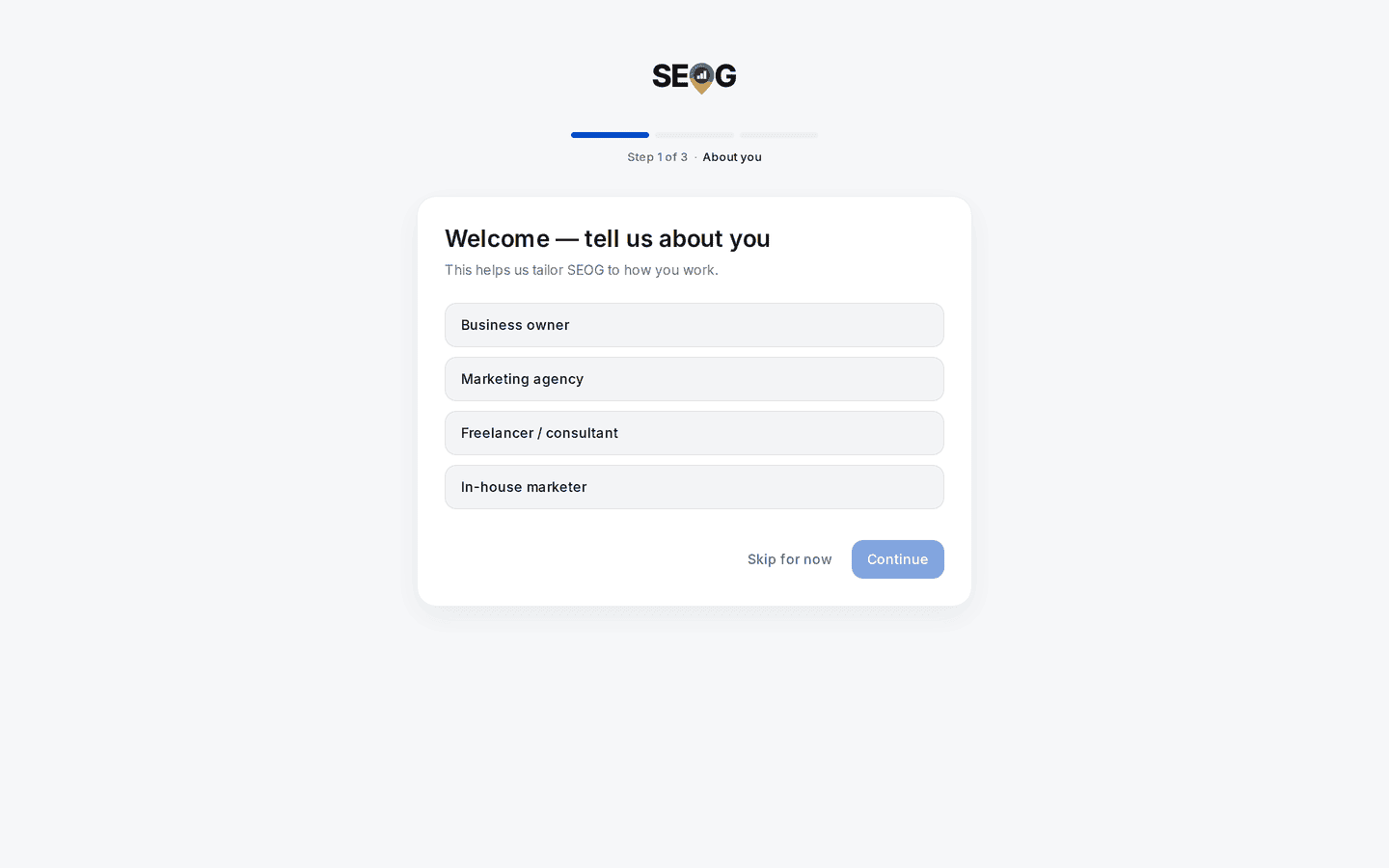
Step 1 of 3. The wizard is mandatory, but every step can be skipped — the answers only tune what the app puts in front of you, and nothing here gates a feature later.
What good looks like. You are signed in, onboarding is complete, and you are looking at the add-business screen.
If the email never arrives. Check spam first. The check your email screen has a resend form, and so does the sign-in screen if you try to sign in before verifying. Verification is required before a session will open, so there is no way around it.
Add the business
Lab 0.3 — Add your practice business
Lab · Where: Add a business (
/businesses/new) · Cost: paid (searching Google and importing a profile are live lookups) · Time: ~2 minYou need: Lab 0.2 done, and a business chosen.
- Start typing the business name and its city — for example
pergola coffee helsinki. SEOG searches Google Places and returns matching profiles. The search is biased toward your approximate location, so a bare brand name usually still resolves. - Pick the right listing from the results. Check the address carefully; chains and similarly-named businesses are easy to confuse.
- SEOG imports it, pulling in the real profile: name, address, category, rating, review count.
- You land on the business overview at
/b/{businessId}/overview.
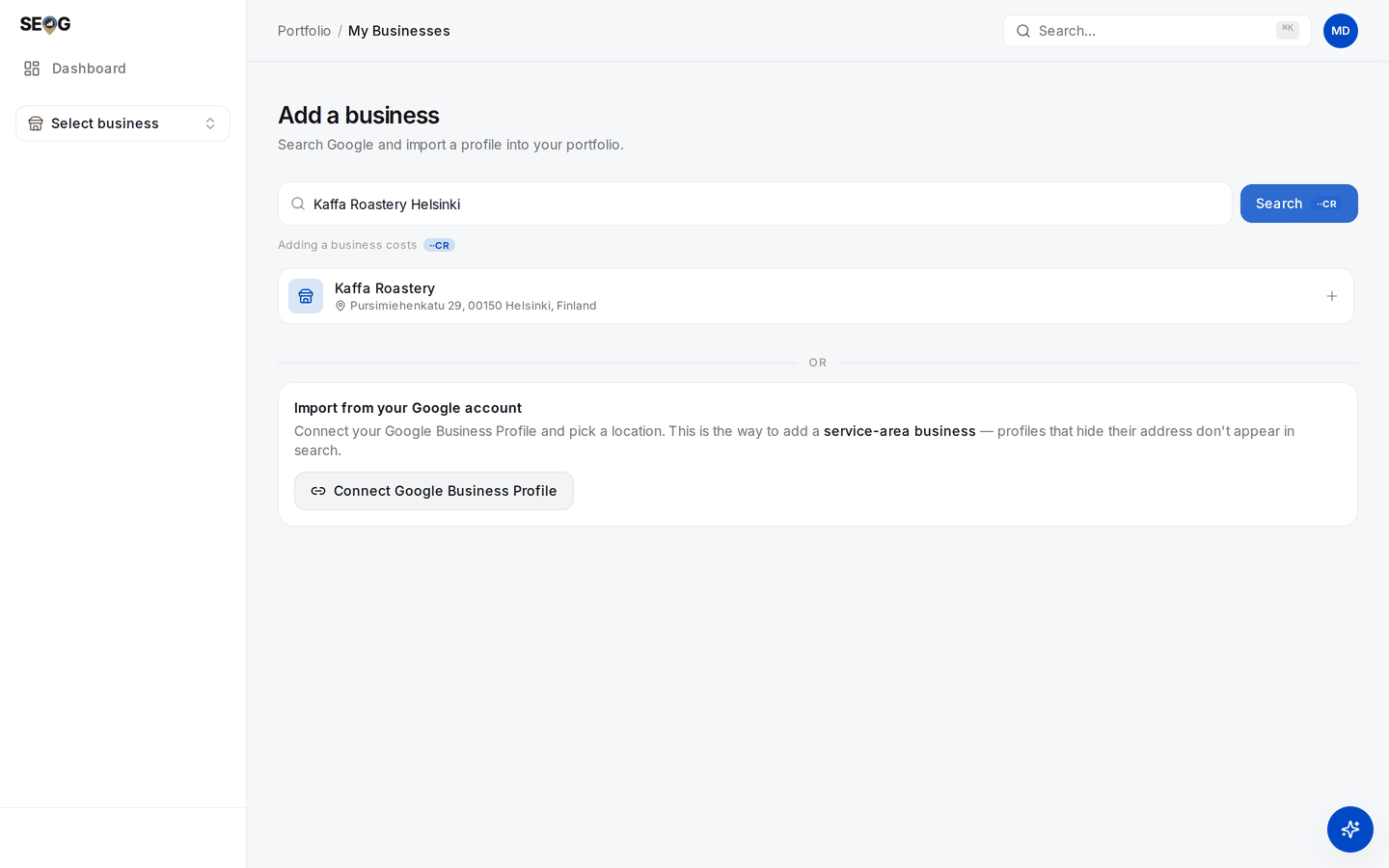
Results come back as Google holds them — name plus full street address. Match the address, not the name; that is how you avoid importing the wrong branch of a chain. The "Import from your Google account" panel underneath is the other path — see If the import is refused, below.
What good looks like. The overview shows the business's actual name, address, star rating and review count — the same values you see on Google Maps. If a field is empty, that is because Google does not expose it, not because something failed. SEOG shows fields empty rather than inventing plausible-looking values, which matters more than it sounds: a tool that fabricates one field will fabricate a ranking.
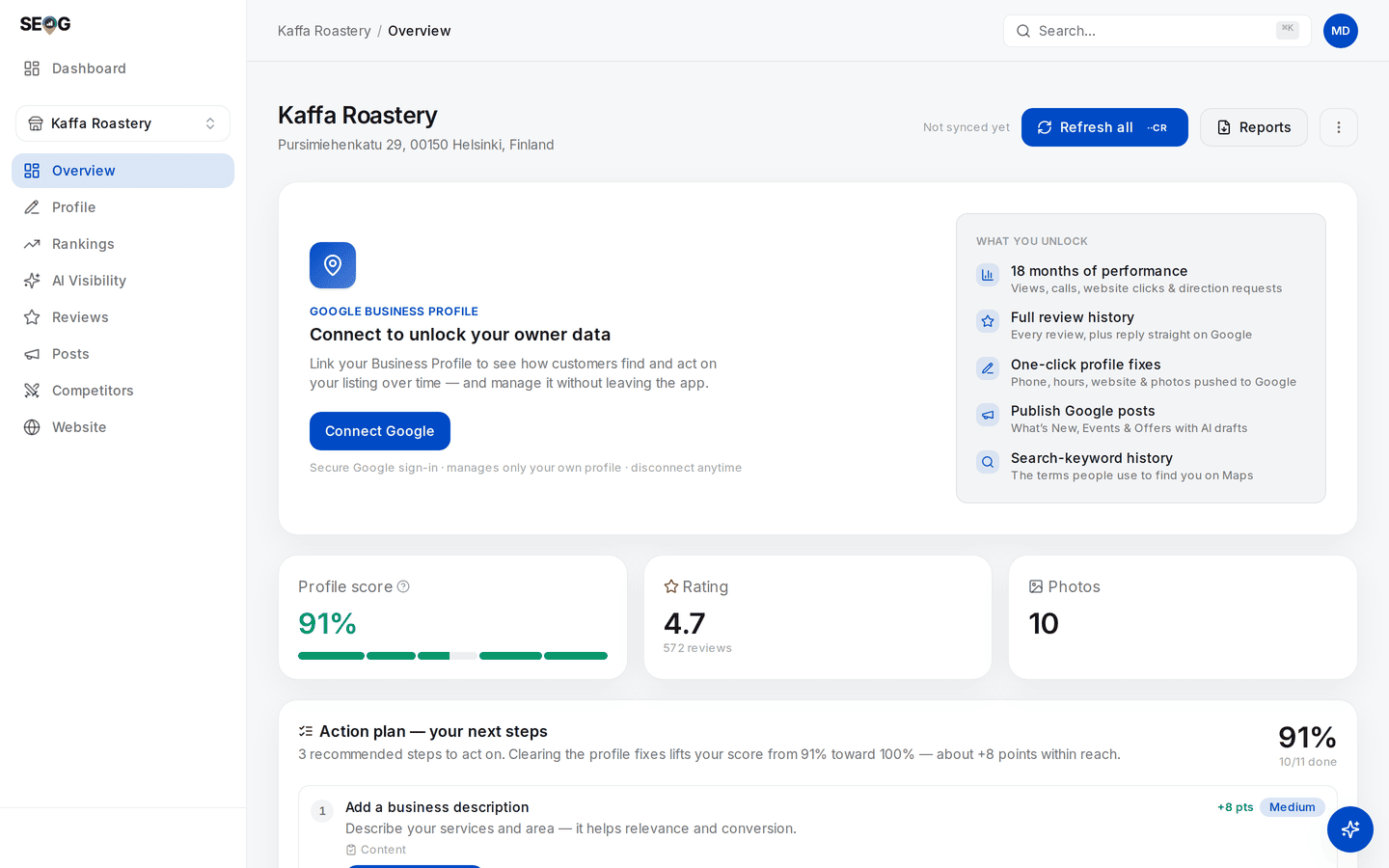
Everything on this screen came from Google, not from you: the address, the 4.7 rating over 572 reviews, the photo count. The panel at the top is the boundary the next section is about — without an owner connection, this is the whole of what a searcher can see.
If the import is refused. Service-area businesses — mobile and at-home trades that hide their street address — are the awkward case. Google leaves hidden-address businesses out of public place search unless the search explicitly asks for them, and even when they are returned they carry no coordinates (LSM-PLACES-67). SEOG does ask for them, so the listing usually appears in the results; the import is then refused, with a message telling you to connect Google Business Profile instead — because a business stored without coordinates would have nothing to put on a map. (The panel's own line, "profiles that hide their address don't appear in search", is the short version of that.)
Use Import from your Google account on the same page: connect the Google Business Profile that owns the listing and pick the location. This path only works for profiles you have access to. Service-area businesses covers why this whole category behaves differently.
Connect Google Business Profile (if you control the business)
Importing gives SEOG the public view of the business — the same thing any searcher sees. Connecting the Google Business Profile account that owns the listing gives it the owner view, and they are not the same data at all.
| Public view (import) | Owner view (connected) | |
|---|---|---|
| Name, address, category, hours | Yes | Yes |
| Rating and review count | Yes | Yes |
| Full review history | A sample of at most five, chosen by Google | Complete |
| Reply to reviews | No | Yes, published to Google |
| Profile description | Not visible | Yes |
| Edit profile fields | No | Yes |
| Publish posts and photos | No | Yes |
| Views, calls, direction requests | No | Yes — daily history, in practice about 18 months |
| Search terms people used to find it | No | Yes |
That bottom half is the data local SEO is actually judged on, and Google gives it to nobody but the owner. If you have access, connect it now.
Two of those rows have documented limits worth knowing before you build a report on them. The five-review cap on the public view is Google's own, stated in the Places documentation (LSM-PLACES-08). The 18-month figure everyone quotes for performance history appears only on the deprecated version of the request object; the current interface states no maximum at all, so treat 18 months as a working assumption rather than a guarantee (LSM-MEASURE-04).
Lab 0.4 — Connect the Google Business Profile
Lab · Where:
/b/{businessId}/overview· Cost: free to connect · Time: ~2 minYou need: manager or owner access to the business's Google Business Profile. Skip if you are on the observe-only path.
- From the business overview, start the Google connection and sign in with the Google account that manages the profile.
- Grant access when prompted.
- Confirm the connection is live — the owner-only panels (performance, full review history, the profile description) become available once it is.
What good looks like. The "Connect to unlock your owner data" panel is gone from the overview, and the owner-only panels stand in its place. They start empty: connecting grants access, it does not download anything. Each panel has its own load button, and pulling the history behind it is a paid action you will run in Part II. This is deliberate — nothing fetches from Google unless you asked for it.
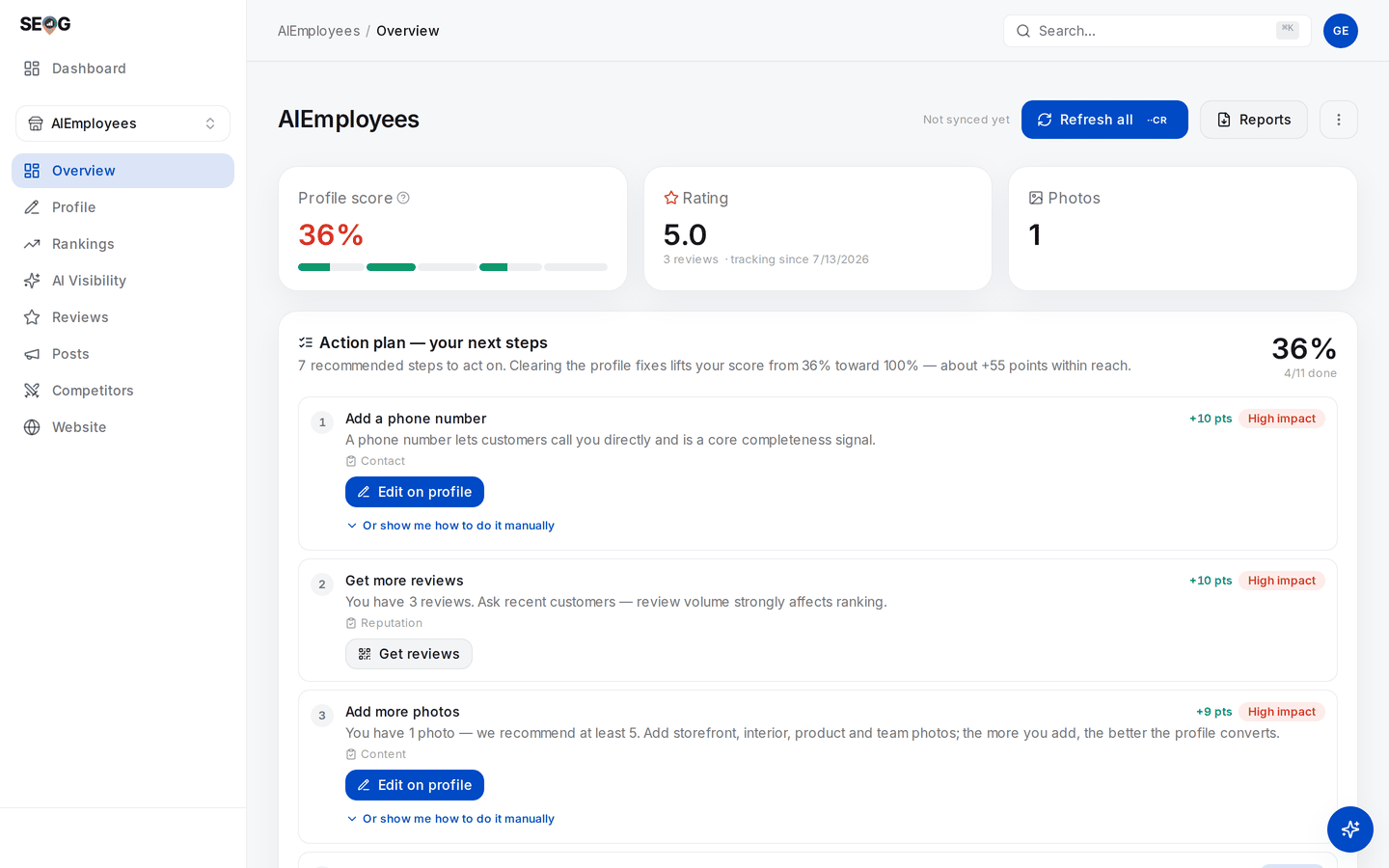
A different business, this one connected. The quickest tell is what is missing: no "Connect to unlock your owner data" panel at the top. The score is also honest about the state of the profile — 36%, in red, with each recommended fix carrying the points it is worth. That list is the raw material for Part II.
What you just learned. Most of what people call "local SEO data" splits cleanly into public and owner-only. When you evaluate any tool in this industry, the first question is which half it can see — and any tool claiming owner-grade metrics without an owner connection is guessing.
You are ready
You now have an account, a business, and — if you were able — the owner connection.
Part I explains what you are looking at before you start changing things. If you are impatient to do something, Part II starts with a full diagnostic of the business you just added, and you can read Part I when something there surprises you.